Showing posts with label acrobat. Show all posts

Adobe Acrobat: Fix for "Error: undefined; OffendingCommand: setdistillerparams; ErrorInfo: CalCMYKProfile U.S. Web Coated (SWOP) v2"

%%[ Error: undefined; OffendingCommand: setdistillerparams; ErrorInfo: CalCMYKProfile U.S. Web Coated (SWOP) v2 ]%%
%%[ Flushing: rest of job (to end-of-file) will be ignored ]%%
Error accessing color profile: U.S. Web Coated (SWOP) v2
%%[ Warning: PostScript error. No PDF file produced. ] %%

For a while now, my PDF creation has been broken and I never really bothered to read the error message. When I finally did, I thought what a strange error to come across.

Somehow, the colour profile "U.S. Web Coated (SWOP) v2" has gone missing.

Good thing Adobe has these up on the internet for us to download.

  • Go to the "ICC profiles for Windows" page to grab "Adobe ICC profiles".
  • Click "Proceed to download"
  • Click "Download Now" (So many steps to download a bloody file)
  • Now extract "AdobeICCProfilesWin_end-user.zip"
  • Go to "Adobe ICC Profiles (end-user)\CMYK Profiles"
  • Right click "USWebCoatedSWOP.icc" and click "Install Profile".
  • That should now fix your problems.

9825_5765
Well, okay just one of them.

Source

Acrobat: Remove Acrobat plugin from Firefox

Alright Adobe, I'm sick of your shit. I don't want to put up with the laggy scrolling and occasional crashes which come with viewing PDFs in a browser window.

I don't mind reading PDFs outside of a browser, but can you quit fucking around with my browser preferences? When I disable your plugin, I expect it to stay disabled. I don't want it to be re-enabled the next fucking time I load up Acrobat/Firefox!

image
Why is it enabled? I've already clicked disable +20 fucking times!

So, clicking on "More" provided me with information on which DLL file it was using to provide me this "service"; nppdf32.dll

Searching my computer gave me:

  • C:\Program Files\Mozilla Firefox\plugins
  • C:\Program Files\Adobe\Acrobat 9.0\Acrobat\Browser

Delete "nppdf32.dll" (and it's DEU/FRA bits) from both places. Hell, you can even just delete off the "Browser" folder in "Acrobat". There's no playing nice with you. I tried being nice and but you won't listen.

153 
An alternative Twig's Tech Tip on how to deal with Adobe.

Firefox did the world a great favour by displaying PDF's natively, and even though it's not perfect I'm still grateful.

Windows: Regain disk space on C drive with some uncommon methods

I admit I've been lazy and slacking on the computer maintenance side of things lately (which translates to a few years). As a result, things have cluttered up and I'm starting to constantly run low on C:.

I do however perform the usual trimming of the temp folders and restore points, which usually do the trick. I find programs that clear the browser cache to be stupid because the files are eventually redownloaded again when you browse.

So I resorted to TuneUp Utilities' Disk Space Explorer which is a bloody brilliant computer maintenance suite. The Disk Space Explorer is a nice tool that lets you see what folders/files are hogging up space on your computer.

Adobe Acrobat 9

First on the list, and somehow unsurprisingly, Adobe Acrobat. Delete the stupid installer cache files, with half the files in languages I cant even read!

Shaved: 1.22gb.

Windows Installer Cache

Much like the the previous program, incomplete or unsuccessful installations may leave horrendous cache files on your computer.

Use the Windows Installer Cleanup Utility (which is basically MSI Zap with a nice frontend) to remove the files in a safer manner. Just be careful with it. Its sort of like a big hammer so if you go apeshit with it, something will break.

Some programs will have broken shortcuts after this is run. Just edit the shortcut and set a target, or recreate a shortcut that runs the appropriate executable.

It also removes the install logs, which makes it impossible to uninstall the software. Just be sure you want to keep it ;)

Shaved: 2.16gb to 793mb (and thats just by removing Visual Studio 2005!)

ACDSee Catalogue Database

You may have noticed that I use alot of "strange images" in my posts. I'm a massive image hoarder, and that causes my image manager to suffer.

Remember to clean your ACDSee catalogue database!

Shaved: 1.6gb to 860mb.

NOD32 Antivirus Quarantine

The quarantine will store a copy of all infected files, including the gigantic (and infected) setup files that you might of grabbed off torrents.

Go to "Tools" > "Quarantine" and remove any files you know you wont need. Its a shame you cant sort by file size.

Shaved: 530mb to 5.38mb.

Compact Thunderbird POP3 Accounts

IMAP accounts will just download content from the servers when needed, but POP3 will store a copy of the email even after you've deleted it.

To delete the unecessary emails, clear your folders (inbox, sent, etc) and then delete them again from the trash folder. Now select your account, go to "File" > "Compact Folders".

Depending on how much crap you deleted, this may take some time. The first time I discovered this functionality, I saved over 1.2gb of space! Now I do this quite often, so I didn't save as much space.

Shaved: 1.66gb to 1.63gb.

Compact VMWare Virtual Hard Drives

All your VM machines need some loving too. See here to find out how to compact the virtual disks.

This will take quite some time, and the space saved will really depend on how much you use the virtual machines. While you're waiting, you can do the next part.

Vista was disgustingly slow and took the longest to shrink by far. Its ridiculous, because there wasn't even anything installed on the damn image and it took longer than overnight to complete! Vista went from being 6.59gb to 7.9gb. WTF?

Shaved: 60.3gb to 55.19gb

Clean Up Your Mess

You always have the feeling that one day, some point in your life you're gonna have to clean your room. Same deal with your downloads folder, one day you're gonna have to clean it out and remove those duplicate downloads.

Eclipse Workspace History

See here to reduce the size of your Eclipse workspace folder by deleting the local history. The local history is a backup copy of anything you save.

Clearing this also seems to speed up your Eclipse loading times.

Shaved: 943mb

Acrobat 9: Delete space wasting cached setup files

I was using a disk space explorer and found that Adobe Acrobat was hogging up a whopping 1.22gb on just the frickken installation to auto-repair itself "in case something broke".

The files were located at "C:\Program Files\Adobe\Acrobat 9.0\Setup Files\{AC76BA86-1033-F400-7760-000000000004}", but it may be differ if you changed the installation path.

Sorry, but I cant be stuffed repartitioning my C: just because I'm running low. Wasteful applications like this have got to fuck off.

0312 
Give Adobe a swift kick to the nads to remind them how much they suck.

If you're paranoid about deleting it straight off, just move it off onto another drive "in case something breaks" and auto-repair fails.

The main file using up all that space is "Data1.cab". Acrobat seems to be working fine without it, and my computer can now enjoy a bit more breathing room.

There are more uncommon space saving tips here.

Disable Automatic Updates in Adobe Acrobat 8

Method A:
The fact that you're here reading this probably means that you've already tried unticking "Automatically Check for updates" when cancelling the automatic update.

If that is case, you ignore these instructions from Adobe on how to disable Automatic Updates as they just don't seem to work.

Method B:
The first comment (by Overlord) in this post proves to be much more useful than anything else on it.

His instructions? Simply delete the folder "C:\Program Files\Common Files\Adobe\Updater5". Simple as that, no more annoying updates. I like to be on the safe side and rename rather than delete, and this method seems to have worked quite well so far.

Method C - 1:
This method may seem a bit barbaric for some, so something a bit more "official" could be up your alley. These instructions from Adobe provide a download link to disableupdates.zip, containing a registry file to simply double click and import. I have not tried this method, so let me know if it works!

Method C - 2:
If for some reason that link no longer works, the contents of the registry file is pasted below.

Windows Registry Editor Version 5.00

[HKEY_LOCAL_MACHINE\SOFTWARE\Adobe\Acrobat Reader\7.0\FeatureLockdown]
"bUpdater"=dword:00000000

[HKEY_LOCAL_MACHINE\SOFTWARE\Adobe\Adobe Acrobat\7.0\FeatureLockdown]
"bUpdater"=dword:00000000

[HKEY_LOCAL_MACHINE\SOFTWARE\Policies\Adobe\Acrobat Reader\8.0\FeatureLockdown]
"bUpdater"=dword:00000000

[HKEY_LOCAL_MACHINE\SOFTWARE\Policies\Adobe\Adobe Acrobat\8.0\FeatureLockdown]
"bUpdater"=dword:00000000

Simply paste it into notepad, save as a "kill automatic updates.reg" and then double click the file. This will kill the automatic update for both Acrobat 7, Acrobat Reader 7, Acrobat 8 and Acrobat Reader 8.

Method C - 3:
The instructions above have been simplified so it'll run in the start menu. Go to the Start menu and click Run, paste the following and click OK.
REG ADD "HKLM\SOFTWARE\Policies\Adobe\Acrobat Reader\8.0\FeatureLockdown" /v bUpdater /d 0 /t REG_DWORD /f
The downside of this is that it will only work for the Adobe Acrobat Reader 8... unless you're a crafty little bugger and can figure out the registry above and what to do with it ;)

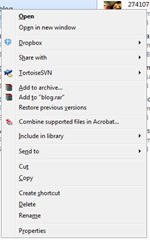
Adobe Acrobat - Remove 'Combine Supported Files in Acrobat' context menu option

I like to keep my Windows installation as clean as possible, and that means going through the trouble of removing menu items I never use as they only slow down the system.
To get rid of Adobe Acrobat's context menu options, simply run the following command.
regsvr32 /u "C:\Program Files\Adobe\Acrobat 8.0\Acrobat Elements\ContextMenu.dll"
For Acrobat 9, simply change the number.
regsvr32 /u "C:\Program Files\Adobe\Acrobat 9.0\Acrobat Elements\ContextMenu.dll"
Another thing to take note of, x64 users have to change the command yet again.
regsvr32 /u "%programfiles(x86)%\Adobe\Acrobat 9.0\Acrobat Elements\ContextMenu.dll"
regsvr32 /u "%programfiles(x86)%\Adobe\Acrobat 9.0\Acrobat Elements\ContextMenu64.dll"
This doesnt actually work for me, I presume mainly due to the fact that its a 32bit program trying to unload a 64bit DLL. So if all else fails... resort to registry deletion.
HKEY_CLASSES_ROOT\*\shellex\ContextMenuHandlers\Adobe.Acrobat.ContextMenu

That will get rid of the menu items shown below. 

a81_image2[1] 
Theres another one for folders.
image_thumb
Run this from a command console with admin access.
reg delete /f HKCR\Folder\ShellEx\ContextMenuHandlers\Adobe.Acrobat.ContextMenu
On Acrobat 11+, you'll need to also use this (untested by me, posted in comments):
regsvr32 /u "%programfiles(x86)%\Adobe\Acrobat 11.0\Acrobat Elements\ContextMenuShim64.dll"
 Or, if you prefer to do it manually, search the registry for "{D25B2CAB-8A9A-4517-A9B2-CB5F68A5A802}" and delete it.

*edit - 19/01/2009*
Updated to include Acrobat 9 instructions.
*edit - 21/08/09*
  • Added x64 users command.
  • Added registry removal.
*edit - 9/7/2010*
So I finally found another menu item from Acrobat. This time it was for the folder.

*edit - 18/12/2013*
Added an extra command for removing it from folders on Acrobat 11. Thanks Anonymous!

[ Source ]
 
Copyright © Twig's Tech Tips
Theme by BloggerThemes & TopWPThemes Sponsored by iBlogtoBlog