Showing posts with label android. Show all posts

Android: How to disable Chrome's useless share menu (aka the "Chrome Sharing Hub")

Note: this flag should also work on Chrome derived browsers such as Brave and Vivaldi.


It's frustrating when a company like Google tries to be all user-friendly up in your face by adding extra steps to what used to be a simple workflow.

Before:

  • Click share button
  • Choose app to share to
After:
  • Click share button
  • Scroll through horizontal list of apps (which has no visual clue to indicate that you can scroll)
  • Click on "More ..."
  • Find the app you want to share to

 I know it isn't that much but its a chore, so lets kill it.


This fucken thign right here.

Steps to disable

  • Open a new tab
  • Go to chrome://flags/#chrome-sharing-hub
  • Double check you're looking at "Chrome Sharing Hub"
  • Click on "default" for that setting
  • Change it to "disabled"
  • I also changed the setting for "Chrome Sharing Hub V1.5" but not sure if its needed

Source

Android: How to figure out which key store your app was signed with

It's been more than a few years since I've signed an APK for release and over time I've forgotten which key store I used to sign apps.

Fortunately, if you've got Java installed then you already have everything required to verify this information.

Step 1 - Acquire the APK(s)

Grab the APK file off Google Play Console (it's in "App Bundle Explorer" > "Downloads").

If its a publically published app then you could probably try grabbing it from a 3rd party APK host as well, but be wary that some dodgy ones may resign your APK.

Step 2 - Get the certificate fingerprints from your key store

Using command prompt, go to the "bin" folder in your Java install path. For me, it was at:
cd "C:\Program Files (x86)\Java\jre1.8.0_251\bin"

 Use "keytool" to read the key store information:

keytool -list -keystore "C:\Coding\Android\keystore"

It should print out a bunch of info, but the line you're interested in here is the bit after:

Certificate fingerprint (SHA1): ...

Take note of that information somewhere along with the key store filename.

Step 3 - Determining the APK certificate fingerprint

From the APK file, open it with an archive utility like 7-zip. If you can't figure out how, just rename it from "whatever.apk" to "whatever.zip".

Extract "META-INF\CERT.RSA".

Reusing your command prompt terminal from before, staying in the same path and run keytool again but with a different set of arguments:
keytool -printcert -file "C:\Users\twig\Desktop\whatever\META-INF\CERT.RSA"

Enter in the password if needed.

This will again spit out a bunch of information. The bit you're interested in is the SHA1 line under "Certificate fingerprints

Certificate fingerprints:

         MD5:  ...

         SHA1: ...

         SHA256: ...

Remember, a key store may contain multiple entries! This means there could be multiple certificate fingerprints.

By verifying the SHA1 fingerprints in the APK and the key store, you should now have enough information to figure out which key store entry was used to sign the APK.

Good luck!


Sources

How to get Android Studio Emulator working properly with Ryzen on Windows - actual instructions that don't suck

I recently built a new Ryzen computer and felt like getting back into Android development for some personal apps. Got Android Studio up and running without any major issues, but the emulator wouldn't run without HAXM (which doesn't work on AMD processors).


Intel HAXM is required to run this AVD. HAXM is not installed.
Install Intel HAXM for better emulation performance.
So one of the first results we all see when searching Google for "Android Studio Ryzen" is a blog post on Google's official Android developers blog titled Android Emulator - AMD Processor & Hyper-V Support, posted in July 2018.

For Windows, the instructions looked simple enough.

  1. ✔️Have an AMD Ryzen processor
  2. ✔️Android Studio v3.2 beta or higher
  3. ✔️Android Emulator v27.3.8 or higher
  4. ✔️x86 based Android Virtual Device image
  5. ✔️Windows 10 April 2018 or higher
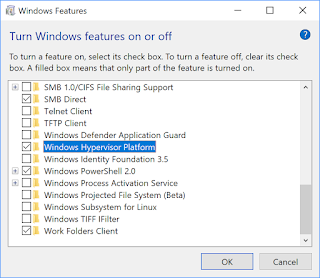
  6. ✔️Windows Hypervisor Platform enabled
  7. ???
  8. ❌Profit

Yes yes all done, but why am I still getting the HAXM error message? I checked for any other blog posts with the AMD tag but in the past 2 years nothing else has been posted for Ryzen.

They also point you to a troubleshooting page which pretty much gave the same instructions as the blog post.

So what the hell am I doing wrong? Nothing. The docs are wrong.

Image result for principal skinner kids are wrong

There is one crucial step missing from most results on the first page of Google when it comes to this issue and I even had trouble finding it on Stack Overflow and Reddit.

By chance, I thought "if Intel needs HAXM drivers, maybe AMD does too". So I took a look in the SDK manager and there it was sitting quietly in the second tab.


  • Open up Android Studio
  • From the top menu, click on Tools > SDK Manager
  • Expand the tree from Appearance & Behaviour > System Settings > Android SDK
  • Click on SDK Tools
  • Tick "Android Emulator Hypervisor Driver for AMD Processors (installer)"
  • Click OK or Apply and let it install
  • Once its finished, open up your Android SDK folder and navigate to "sdk_path\extras\google\Android_Emulator_Hypervisor_Driver"
  • Right click "silent_install.bat" and run with Administrator rights

Now you should be able to run AVDs at a decent speed.

I wish Google would take the time to update their own docs regarding this. It's literally one or two extra lines.

Source

Android: Fix for YouTube "There was a problem while playing. Tap to retry" - Videos Stop Playing After a Few Days

This was an annoying issue plaguing me for the past year or so. I don't know exactly when it started happening or why, but there are numerous posts and issue trackers for it scattered around the internet without a solid fix.

The problem

The official YouTube app suddenly decides to stop working about 2 days after rebooting the phone. There's no real information available (as a user) to figure out what's wrong.

All it says is "There was an error while playing. Touch to Retry".

Oh but not to worry, you're still able to watch YouTube ads before the actual video itself.

http://i.imgur.com/y96imEp.png

For those more technically inclined, here's what the stack trace looks like when YouTube freaks the hell out:

Fixes that I've tried

Over the year, nothing I tried works aside from restarting the phone. That was the only thing that kept YouTube working, other than just watching it via the browser which bypasses the app altogether.

In case you've stumbled upon this guide while running into an entirely different issue, here are a few things that may get YouTube working again:

Clearing cache and data for YouTube didn't work
Uninstalling and reinstalling YouTube didn't work
Downgrading to an older version of YouTube didn't work - I went all the way back from v11 to v6
Removing current WiFi details and adding it back didn't work - some people believe this works
As mentioned above, restarting the phone works for about 2 days. You'll find it frustrating after putting up with an ad and it doesn't work again
Using a web browser to play the video Works consistently, but it's not as good as the app

The Solution!

Only until last week did I manage to find a new suggestion on XDA forums. I tried it out, gave it a few days and surprisingly it still works!

Unfortunately, it requires you to have root access to your Android device. I guess there's only so much you can do before you have to dig deeper to fix these sort of issues.

What you need to do is rename a few system files and restart the phone.

  1. Open up a file explorer capable of browsing system folders. If your phone doesn't have one, I recommend FX File Explorer as it comes with root explorer mode.
  2. Navigate your way to /system/etc/firmware/
  3. Rename the following files to add ".bak":
    tzwidevine.b00 tzwidevine.b00.bak
    tzwidevine.b01 tzwidevine.b01.bak
    tzwidevine.b02 tzwidevine.b02.bak
    tzwidevine.b03 tzwidevine.b03.bak
    tzwidevine.mdt tzwidevine.mdt.bak

  4. Restart your phone.
  5. Make YouTube great again! You shouldn't have any more issues with watching silly videos again after doing this.

Source

Video playback issue - Post #4

Sony Z5 Compact: Root without losing TA partition (DRM features) on Marshmallow

I've spent too long on Android without root access and it really bothers me. I need it!

1046
Feeling imprisoned by my own Android OS... I did not sign up for iOS!

Overview

  • In order to back up the TA partition (where the DRM keys are stored) we need temporary root access via the iovyroot exploit, which is only available on a Lollipop build. This part is optional if you don't care about that functionality
  • Once that's done, you can unlock the bootloader. Doing so wipes the TA partition.
  • Upgrade to Marshmallow
  • We then trick the kernel into thinking it's still locked, giving us both root access and access to DRM-locked features.
  • Optionally, for completion we can also partially restore DRM keys from the TA backup.
  • Having your TA backed up correctly prevents any issues if you want to keep your DRM features such as camera optimisations.

Before starting, make sure you have:

  • enabled USB debugging via Developer mode
  • backed everything up. It's going to get wiped!

Before starting

We have to make sure that this process is actually possible with your device.

  • Open the dialler and enter *#*#7378423#*#* to access the service menu.
  • Go to Service info > Configuration > Rooting Status
  • If "Bootloader unlock allowed" says Yes, then you can continue with this tutorial.
  • If it says No or if the status is missing, then your device cannot be unlocked. Good luck.

Note: If it says "allowed" it means you CAN unlock your device. It does NOT mean your device IS unlocked.

While we're here, make a note of your IMEI number. You'll need it later.

Screenshot_2016-04-16-17-47-40

Downloads

Downgrade to Lollipop

(Optional if you don't care about the DRM keys)

If you're already on Marshmallow, then I'm afraid you need to downgrade back to Lollipop (and in the process wipe everything). Make a backup using the Sony PC Companion before doing so.

  • Download Flashtool and install it
  • Download firmware (It's Aussie firmware, but we only need it for a short amount of time so it'll do) and put it into %USERPROFILE%\.flashTool\firmwares
  • Start Flashtool
  • Click on the lightning bolt icon
  • Select "Flashmode"
  • Select the Lollipop firmware (32.0.A.6.200) and select the wipe options APPS_LOG, DIAG and USERDATA. Otherwise things will crash a lot and you won't get into the phone properly. Trust me, I've tried.
  • Turn off the phone.
  • Wait for Flashtool to finish preparing the files.
  • When prompted, hold "volume DOWN" button while plugging in the USB.
  • Wait for it to finish. Don't trust the progress bar! Make sure it's finished by reading the text. It will tell you when to disconnect and restart.

Backing up the TA partitions

(Optional if you didn't bother downgrading to Lollipop)

Now that you're on Lollipop, you can use iovyroot. With this we can gain temporary root access and dump the TA partition to a file. This file is what we use to restore the DRM keys to your device after it's been wiped by unlocking the bootloader.

Extract iovyroot_v0.4.zip and run "tabackup.bat"

Once it's done, you should have a TA-####.img file which sorta looks like "TA-16042016.img" and is approximately 2mb in size. That's your TA backup done and dusted!

Keep it safe somewhere.

Unlocking your bootloader

  • Go to Settings > Developer options
  • Tick "Enable OEM unlock"
  • Open up a browser on your computer and follow the instructions at Sony's developer website. You'll need to provide your email in order to continue. Mine got caught in junk mail so be sure to check that.
  • After receiving your email, entering your IMEI number and accepting some user conditions will provide you with an unlock code.
  • This is the point where I remind you again...

BACK UP WHAT YOU NEED NOW. There's no turning back after this!

  • Turn off your phone.
  • In Flashtool, click on "BLU"
  • Hold "volume DOWN" on your phone and plug it into the computer.
  • When prompted, release volume down and unplug.
  • Hold volume UP and plug it back in.
  • You should now get a dialog which lets you enter an unlock code.
  • Paste in the unlock code and click "Unlock".
  • Wait for the phone to finish doing it's thing and restart.
  • Your phone is now wiped clean so you'll need to go through an initial setup again.
  • Checking the service status again should now say "Bootloader unlocked: Yes".

Upgrading to Marshmallow

(optional if you're already on Marshmallow)

At this point you can either download the firmware I provided (if you're Australian) or download the right one for your region.

If you're not an awesome Australian, then you'll need to download your own firmware.

  • Using FlashTool, click on the "XF" icon to launch "XperiFirm"
  • This lets you search for firmware files for your device.
  • Look for "Xperia Z5 Compact" and then your model. In my case E5823 (check your phone under Settings > About > Model)
  • Select the region you want (Customised AU means generic unbranded firmware for Australia)
  • Select the firmware on the right, shown as highlighted.
  • Click download.

image

  • Close the downloader when it's done unpacking.
  • It will take some time to repackage the firmware files into an FTF file. This is what we use to re-flash your phone with stock firmware. It also contains the kernel file you need for the next part of the tutorial.
  • Now turn off your phone.
  • In Flashtool > Lightning bolt icon > Flashmode
  • Select the Marshmallow upgrade (32.1.A.1.185)
  • Wait for it to prepare the files.
  • When prompted, hold volume DOWN on phone, plug it in.
  • Wait until it's done. Restart and ensure the phone is working.

Rooting your Z5 Compact

Now for the main course. This is why you're here.

  • Open your Marshmallow FTF file using Winrar or 7-zip and extract out "kernel.sin".
  • In FlashTool > Tools > Sin Editor, open up "kernel.sin" and click "Extract"
  • This will give you "kernel.elf"
  • Extract the files from "rootkernel_v4.22_Windows_Linux.zip" into a folder without spaces (ie. not your desktop or program files)
  • Copy "UPDATE-SuperSU-v2.65-####.zip" into the rootkernel folder and rename so it becomes "SuperSU-v2.65-####.zip"
  • Open a command prompt to the rootkernel folder and type in "rootkernel kernel.elf kernel_patched.elf". This process deactivates SONY-RIC, removes DM-VERITY, adds TWRP bootloader as well as the DRM FIX.
  • Ensure that the SuperSU service was added by scanning the output for "Adding service entry for SuperSU".
  • If you come across this error, it means you did it on a Lollipop kernel.

- Found SuperSU-v2.65-20151226141550.zip
  Adding service entry for SuperSU
source type fsck does not exist
Could not add rule for perm: dac_override
source type fsck does not exist
Could not add rule for perm: write
source type fsck does not exist
Could not add rule for perm: create

I don't know how to fix it, but I'm pretty sure the author of rootkernel isn't bothered to fix it either.

  • Now that you have your patched kernel, it's time to flash it using Flashtool!
  • Turn off your phone.
  • Flashtool > Lightning bolt icon > Fastboot
  • Now we've got a lot of options! Click "Select kernel to Flash"

image

  • Hold the volume UP button and plug in your phone.
  • When the Kernel Chooser dialog appears, click on the "*.sin" dropdown to change it to "*.elf", then select "kernel_patched.elf".

image

  • It should finish pretty quickly with something like "Please check the log before rebooting into system".
  • If everything went well, unplug and turn on your phone.
  • The device should now have the SuperSU app installed.
  • Checking unlock status should now say "Bootloader unlock allowed: Yes" again.
  • Download and test Titanium Backup. You should be prompted to give root access on start.
  • Turn your phone off completely and then on again to make sure root status persists.
  • Now you can enjoy your... well, EVERYTHING!

Restoring the DRM keys

(optional, I guess?)

This is for the perfectionists and completionists. If you can't stand the thought of being at 99% and absolutely NEED to have that 100% completion then follow me.

  • Copy your TA partition backup to the rootkernel folder.
  • Open up a command prompt to the rootkernel folder and type in the following:

flash_dk TA-####.img restore-drm-keys.ftf

  • The script will spit out a new file called "restore-drm-keys.ftf".
  • Put this into "%USERPROFILE/.flashTool/firmwares/"
  • In Flashtool, click on the lightning bolt icon
  • Select flashmode
  • Select "DeviceKey" and click Flash
  • Hold "volume DOWN" and plug in USB cable.
  • Unplug and restart phone when instructed (read the activity log)

This new restored TA partition should persist across device wipes and Android upgrades.

Well, that's the end of that! We sure showed Sony who's boss!

View post on imgur.com

Donations

Big props go to zxz0O0 for making the TA backup easy to use and tobias.waldvogel for the DRM restoration patch. I've linked to their donation pages so please donate for their amazing work.

If you thought this guide was helpful then please feel free to donate to me too! (link is on the right)

Sources

Android: Fix for TextView.setTypeFace() not working on Android 5.x+ (Lollipop/Marshmallow)

This is one of the latest quirks I've had the displeasure of running into while upgrading an old app to the latest Android 6/Marshmallow.

The problem happens when the font fails to apply onto a TextView even though it loaded via Typeface.createFromAsset() without any errors.

Because I haven't worked on this app in many years, the problem has gone unnoticed until now.

Fortunately it's quite an easy fix and there is no need to change any code. What you actually have to do is pass the font file through the converter at http://www.freefontconverter.com and update the font file.

Easy. So, so easy.

Sources

Android: Fix Black Areas in Shape Drawables

When I first experimented with LayerDrawables, I thought something was broken in the way I was loading drawables and initialising the LayerDrawable.

image image

Here's what it looks like on Android 4.1 (API 16) and Android 4.4 (API 19)

For each background and border, I had a drawable defined in XML files. Upon testing the layers individually, the background was loaded fine, however the border drawable was causing the black from appearing.

Here's an example of "cell_border_event.xml" shape drawable:

<?xml version="1.0" encoding="utf-8"?>
<shape android:shape="rectangle" xmlns:android="http://schemas.android.com/apk/res/android">
<stroke android:color="@color/cell_border_event" android:width="3dp"></stroke>
</shape>

It seems that for Android 4.1 and lower, the shape drawables require a definition for the solid colour attribute. Prior to Android 4.4 the default was black.

<?xml version="1.0" encoding="utf-8"?> <shape android:shape="rectangle" xmlns:android="http://schemas.android.com/apk/res/android">
<!-- Android 4.1 renders this black if this isn't specified -->
<solid android:color="@android:color/transparent" />
<stroke android:color="@color/cell_border_annual" android:width="3dp"></stroke>
</shape>

After adjusting this for all the border shapes, it now looks consistent.

motulmen0rs

Eh, looks about right to me.

Source

Android: Use Facebook messaging without Facebook Messenger

Facebook's app checks for the existence of the Facebook messenger app and if not found disables the messaging capabilities on your Facebook app. That's a bit shit because I have no interest in installing that invasive, bloaty app which demands access to almost every part of my phone.

Screenshot_2015-05-02-11-59-13 eBQNoiZ
Facebook: Once they're in, you're screwed.

Fortunately for me, I found a post on XDA forums where nemoc23 figured out that all you needed to do is create a dummy app which pretends to be "com.facebook.orca" and Facebook messaging will work again.

So, steps to install it are:

  • Go to Settings > Security & Privacy
  • Make sure you have "Unknown sources" enabled
  • Go to Settings > Apps > Facebook
  • End/terminate the app, confirm yes
  • Clear the data, confirm yes (this also clears cache for you)
  • Download "Messenger.apk" from XDA (footer of the first post)
  • Open it and install it
  • (recommended) Turn "Unknown sources" back off
  • Open up the Facebook app and log back in

You'll need to go through your settings to customise notifications and stuff, but at least now you've got messaging capabilities back in the one app!

Source

Eclipse, Android and Maven: Part 7 - Global properties and settings for Maven

For those who work on projects with multiple developers such as open source projects, you'd realise that the way I've currently set up Maven is not very good for multi-developer projects.

It's also not a good idea to have passwords or computer specific SDK locations in your pom.xml file because each developer will need to change the pom.xml in order to compile the code.

If you're fine with using script files to pass arguments to Maven then that's fine. Otherwise, you can set up the Maven global settings.xml file.

Contents

Machine specific Maven settings

It can be located in either:

  • %M2_HOME%/conf/settings.xml
  • %USERPROFILE%\.m2\settings.xml (aka ~/.m2/settings.xml)

Either way, the guts of it looks the same.

Open up your settings.xml file (you may need to create it for the user specific one).

I use this to store the location of my Android SDK home folder, Android SDK Maven repository and information such as keystore file and passwords.

The profile named "variables" sets up some properties for us which is automatically filled into your pom.xml file when needed.

The Android Maven repository is set up so you don't have to do it in every pom.xml file you work on.

And lastly, active profiles tells Maven to always use these the variables profile.

Once you're done, you'll need to reload the settings into Eclipse (if you don't want to restart).

  • Preferences
  • Maven
  • User settings
  • Click "Reindex" to update the settings

And that's it! We've finally reached the end of the Maven journey!

ostrich-skiing

Time to go full pro at Maven now! I mean if an ostrich can ski that good, what's YOUR excuse?

Source

Eclipse, Android and Maven: Part 6 - Sign your Android app APK for release

And now its time to sign your APK for release. This took a while to figure out due to all the conflicting information about ways of setting this up.

I've determined that the easiest way of doing this is to simply create a "toggle variable" that skips the signing process unless specified by the calling script / command line argument.

Contents

Setting it up

Open up your pom.xml file for editing, go to project > properties and add in:

<sign.skip>true</sign.skip>

This, by default, will skip the signing process.

Now scroll down to find the project > build > plugins and add in this:

<!-- Sign the APK with release signature -->
<plugin>
<groupId>org.apache.maven.plugins</groupId>
<artifactId>maven-jarsigner-plugin</artifactId>
<version>1.3.2</version>
<configuration>
<!-- Required because it's initially signed with a debug cert -->
<removeExistingSignatures>true</removeExistingSignatures>
<skip>${sign.skip}</skip>

<keystore>${sign.keystore}</keystore>
<storepass>${sign.storepass}</storepass>
<alias>${sign.alias}</alias>
<keypass>${sign.keypass}</keypass>
</configuration>

<executions>
<execution>
<id>sign</id>
<goals><goal>sign</goal></goals>
</execution>
<execution>
<id>verify</id>
<goals><goal>verify</goal></goals>
</execution>
</executions>
</plugin>

You may have noticed in the configuration that <skip> is controlled by ${sign.skip}, as defined above in the properties. You can override this by passing in command line arguments to mvn.

Similarly with the keystore, storepass, alias and keypass, they're all configured with properties or command line arguments. This is a good way of keeping your passwords out of the pom.xml file and source control.

Another point to make clear is that you NEED removeExistingSignatures. When the jar/apk is initially created, it's signed with a debug certificate. You have to REMOVE that before signing with your own, otherwise the verification goal will fail with this error:

[INFO] jarsigner: java.lang.SecurityException: invalid SHA1 signature file digest for res/drawable-xhdpi/abc_ic_go_search_api_holo_light.png

How to sign your APK

Normally, you'd just run this to create a debug APK:

mvn package

To create the release APK, type the following to begin the build process:

mvn package -Dsign.skip=false -Dsign.keystore=X:\your\cert.keystore
-Dsign.storepass=STOREPASSWORD -Dsign.alias=KEYALIAS
-Dsign.keypass=KEYPASS

The "-Dvarname=value" specifies it's a variable being passed to your build script, which overrides any instances of ${varname} in your pom.xml file.

It's also a good idea to enable verbose output to test your configuration until it's working properly. Place this under the jarsigner plugin > configuration:

<verbose>true</verbose>

You'll probably also run into this warning message:

[INFO] Warning:
[INFO] No -tsa or -tsacert is provided and this jar is not timestamped. Without a timestamp, users may not be able to validate this jar after the signer certificate's expiration date (2068-08-23) or after any future revocation date.

Don't worry, it's not too bad. The date is the expiry date of your certificate so it's fine if your certificate expires in an extraordinarily long period of time.

By now you should be able to produce a signed APK file, ready for release.

Sources

Eclipse, Android and Maven: Part 5 - How to debug your Android app with Maven?

We can see the light at the end of the tunnel now. I'll tell you the steps required, and then describe the nitty gritty details after for those who are interested.

Contents

How to debug with Maven?

  • First of all, connect your test Android device or start the emulator (preferably Genymotion)
  • Place this command into a batch/shell file called "mvn-debug.bat" because you'll run it quite regularly.
mvn package android:deploy android:run -U
  • While you're waiting for it to finish compiling and deploying, set Eclipse into DDMS perspective mode so you can see stuff like the activity log and devices tabs.
  • Each time you start a new Eclipse session, you'll have to tell it once (manually) to debug your app. (I haven't found a way around this yet)
  • Find the "Devices" tab.
  • When your app starts it'll display a message "Waiting for debugger" and wait there.
  • Find and select your app in the devices tab. If you enabled debugging in your app manifest file, it should have a red debug icon next to it, circled in red.
  • Click on the green debug icon in the devices tab toolbar circled in orange. You'll only need to do this the first time debugging.
  • Now you should be debugging like you were before Maven.
  • When you need to debug again in the same session, just run the "mvn-debug.bat" script and it'll start itself. No need to enable debugging again for this session.

image

What actually happened?

  • package: This goal compiles your app and spits out an APK to the "target" folder.
  • android:deploy: This goal uploads your newly compiled APK to the connected device. If there is no device, the build status will be "FAILED" so don't be alarmed if you see that.
  • android:run: This command runs your app on the device.
  • -U: As mentioned in the last tutorial, the -U flag tells Maven to fetch dependencies from the source. This is optional, so use it depending on your circumstances.
  • Because the build and deploy is done outside of Eclipse, it doesn't really have a way of knowing when to attach to ADB for debugging. That's why you have to tell it to debug separately.

Sources

Eclipse, Android and Maven: Part 4 - Share a library project using a local Maven repository

While you're converting your app to a Maven project, you'll soon realise that you need to tackle any shared libraries first. If you've got more than a couple of apps, it's likely you've created a common library between them to keep your code DRY (don't repeat yourself).

(Sorry for interlinked Part 3 and Part 4, but it's just the nature of this process)

Contents

The problem with Maven (and Gradle)

The way Maven works is it downloads shared libraries from a repository of code and attaches it to your code when needed. The problem with privately shared libraries is that you need to push it to a place that Maven can access.

A few answers on StackOverflow say you have to push your private library to a public Maven repository. To me, that's just not acceptable! A workflow should not force private code to be accessible to the public. Not to mention you'll clutter up public repos with code that should not be there in the first place and waste good namespaces. In short no, this is a shit solution.

A other sources suggested making a local repository. That sounds much more reasonable but how do I make that available across multiple dev machines?

Using Google's Support library from the Android SDK local repository

Most likely you're using Google's Android support libraries, so you'll also need to include the SDK local repository as a source for Maven.

First of all, make sure you have the files in the first place.

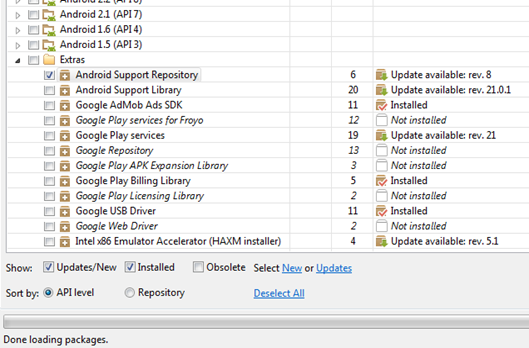
  • Fire up the Android SDK Manager
  • Scroll down to Extras and make sure "Android Support Repository" is ticked
  • Click Install

image

To include the local repository as a source, paste this under the <project> element.

<project ...>
<repositories>
<!-- Include Android Support Repository so we can access support-v4 and appcompat-v7 aar -->
<repository>
<id>google-sdk-support</id>
<url>file://D:/Android/sdk/extras/android/m2repository/</url>
<releases><enabled>true</enabled></releases>
<snapshots><enabled>false</enabled></snapshots>
</repository>
</repositories>
</project>

As you can see in  the <url>element, the value can also be a local file system. If we can somehow replicate that structure we can safely share our code, privately.

To gain some inspiration, I studied the local Maven repository found in the Android SDK under "android-sdk\extras\android\m2repository\" and found an answer!

Setting up a local repository for your library

Knowing that Google can make their libraries accessible locally, I decided to make my own library accessible to other projects using this local repository method.

The only difference is that I'm creating a folder called "local-repo" within the root of the library project. This way, projects that use this shared library can refer to it using relative paths.

Initially I tried using the exec-maven plugin to manually move the main artefact to a common folder, but it just wouldn't work from within the Eclipse IDE. It'd work from the command line, but it's too much work compared  to install:install-file" which does just that with far less configuration. Gotta use the right tool for the right job!

So I set up the goals so it'd run "package" to first create the APK, and then using the "install:install-file" goal from the Maven Install plugin, pushes the main artefact (AAR, JAR, etc) into the local-repo repository in a structure which Maven can use.

I stored this command into "mvn-update-local-repo.bat" (excuse the poor naming) in the root folder of the project and run it whenever I need to push something to the local repo.

mvn package install:install-file -DlocalRepositoryPath=local-repo
-DcreateChecksum=true -Dpackaging=aar
-Dfile=target\twig-android-library.aar
-DgroupId=org.twig.common -DartifactId=twig-android-library
-Dversion=1.0.0-SNAPSHOT

The script pushes the file target\twig-android-library.aar to the repository "local-repo". It specifies that it's v1.0.0-SNAPSHOT.

This should be made more flexible by reading the pom.xml file, but haven't found a way yet.

Snapshot builds and caching

Snapshot builds are fetched only once a day. If you're testing and making multiple changes in the same day, use the -U arg to any mvn command to force Maven to fetch from the source, rather than once a day.

Why is this important?

Because each time you build your APK project, the shared library's AAR files from your local-repo are automatically cached in %USERPROFILE%\.m2\repository (aka ~\.m2\repository).

If fixing bugs in your library, Maven is going to use the cached copy so your changes won't be compiled into the APK unless you specify the -U option.

Using your shared library from an app project

So now you're ready to use the shared library in your APK project.

Edit your pom.xml file and look under <projects><repositories>.

Add another <repository> entry for your shared library.

This example assumes that your app project and shared library projects are on the same folder level.

<repository>
<id>twig-android-library</id>
<releases><enabled>true</enabled></releases>
<snapshots><enabled>true</enabled></snapshots>
<url>${project.baseUri}../twig-android-library/local-repo</url>
</repository>

And there you have it, we've safely passed another hurdle without breaking any monitors.

Now you're ready to debug!

Figuring out the cryptic ClassNotFoundException: Didn't find class on path: DexPathList [zip file], nativeLibraryDirectories=[ /vendor/lib, /system/lib]

Fortunately this is a simple one. It's due to the incompatible versioning of libraries used between the Android Support Library and the Android Support v7 Compat library.

Make sure the support library project you've associated with your APK project is the same version as the support library you declared in the pom.xml dependencies.

This should clear you of any more cryptic errors.

Sources

Eclipse, Android and Maven: Part 3 - Converting an existing Android project to a Maven project

Once you get the hang of creating and compiling a Maven project, it's pretty easy to convert an existing project to a Maven one. Just follow a few basic steps and make sure the code compiles properly before continuing.

You'll need a "pom.xml" file in the root of your project. Just use the generic pom.xml file I shared earlier in Part 2 - Compiling and building your APK .

Contents

Steps to convert your project

The first thing you should do is replace as many lib/jar files as you can with their Maven dependency equivalent as covered in Part 2 of the tutorial. Visit the project's website and find the details as most of them will be available on Maven.

If you're using a shared library project then skim the points below before reading Part 4, which explains how to share library projects. You'll need to convert library projects first.

Once the pom.xml file is ready:

  • Right-click on your project > Configure > Convert to Maven project
  • It will now do things to your project and touch it in strange places.
  • Project > Clean to remove all the extra crud.
  • Maven > Update project to sync the settings and download dependencies
  • Run the mvn-debug script

OR

  • Build by right clicking on the project > Debug > Maven build
  • As before, enter in "package" as the goal.


You'll probably get some project specific errors so fix them as they come. Keep at it. Make sure it validates within Eclipse before continuing!

I know these steps are fairly generalised, but that's the main things to look for.

Women, children and library projects first

The pom.xml file for your library project should be very similar to the pom.xml for an APK project, with two minor differences.

Rather than using the <packaging> type "apk", we'll use "aar" instead which compiles to an Android ARchive format.

The other small difference is that it doesn't need to be signed for release builds.

Once your library projects are compiling cleanly, skip forward to the next tutorial to Part 4 for a moment to see how to include them into your APK project using local Maven repositories.

The tutorial also covers how you should include Google's support library in your code from the Android SDK.

Sorry for interlinked Part 3 and Part 4, but it's just the nature of this process.

Eclipse, Android and Maven: Part 2 - Compiling and building your APK

Now that you have Eclipse set up properly, you're ready to start building a project!

You should create a new project and learn how it works before you start migrating an existing project.

Contents

Creating a new Maven Android project

  • File > New > Other > Maven > Maven Project > Next > Next.
  • For "Catalog", select  Android (You'll need to be online for this to work)
  • Select "android-quickstart"
  • Next
  • Group ID is the package name portion of your app, such as "org.companyname"
  • Artifact ID is your app's compilation name, such as "codepeeker".
  • Version is pretty much the SEMVER version number. Snapshot indicates it's a dev build of sorts that's constantly pushing a compiled library to a repo. I usually set my version to 1.0.0 for new projects.
  • For more on naming conventions, see Maven – Guide to Naming Conventions
  • Package is prefilled as you enter in your Group and Artifact information.
  • Change platform to the Android API version needed.
  • Click finish when done.

image

  • And the result is this... a broken project.
image Same as regular Android development
gen: As before, this is the generated files folder.
src: Where your source files go
assets: Asset files
bin: Binary files. APK file no longer goes here!
res: Resource files. Feel free to remove all the ones you don't need. 

New folders
target: This is where you can find your APK file once it has been compiled.

New files
pom.xml: The configuration file which tells Maven how to build your project.


Ignoring the consume-aar goal

The pom.xml file generated for you is broken by default. At the bottom of pom.xml, you'll see this lint error:

Plugin execution not covered by lifecycle configuration: com.jayway.maven.plugins.android.generation2:android-maven-plugin:3.8.2:consume-aar (execution: default-consume-aar, phase: compile)

image

You can use the suggestions by clicking the red cross on the left to either:

  • Option 1: Mark it as ignored in pom.xml (preferred, but makes the XML messy)
  • Option 2: Ignore permanently in Eclipse (not advised if you work with other people or compile with command line)

Note: If neither of these options are available to you, close pom.xml, right-click it in the file explorer and select Open With > Maven POM Editor.

image

Choosing Option 1 will add the following <plugin> XML to ignore the consume-arr build goal (under build > pluginManagement > plugins). Don't copy paste, just let Eclipse do it for you.

This plugin's configuration is used to store Eclipse m2e settings only. It has no influence on the Maven build itself.

Here's one I prepared earlier

I've created a generic pom.xml that works great as a base for most Android app projects. Just fill in the important parts and the rest should be fairly straight forward. Main things to change are:

<groupId>org.twig.apps</groupId>
<artifactId>d2_runewords</artifactId>
<version>1.0.0</version>
<name>Diablo 2 Runewords</name>
  • The platform version (Android API level).
<sdk>
<platform>16</platform>
</sdk>
  • Make changes to anything under <properties> to suit your system setup such as "android.sdk.path". These are Maven variables which you can access using ${varname}.
  • Added a jarsigner plugin so the Android APK is signed when we're ready to release.

A few other things I had to configure are:

  • Java version 1.6 as a minimum for annotation processing (butterknife, parceler, android annotations, etc)
  • I've configured the Android SDK local repository so you can easily use the support libraries. (More about that in Part 3)
  • The way you include dependencies is via dependencies > dependency
  • defaultGoal tells the script what to do and in what order. The "package" goal creates the APK and "android:deploy" pushes it to the device for testing.

Here's the file:

Whenever you make changes to pom.xml, you may need to keep the project in sync with it. Right click on your project > Maven > Update project (or Alt+F5 for those keyboard savvy users). This ensures the Eclipse project has the same configuration as the Maven pom.xml file, dependencies are pre-downloaded ready for compilation and stuff like that.

Compiling from command line

Personally I much prefer compiling from command line. It avoids a lot of the unnecessary complexities and repetitive confirmations involved with the Eclipse UI when it comes to debugging.

I created a script/batch file that contains the following command:

mvn package android:deploy android:run

What this does is compile your APK (package), push the APK to the emulator (android:deploy) and then start it (android:run).

I saved it in the same folder as your project and named it "mvn-debug.bat". Just run that whenever you want to debug your app. It's a lot less trouble than going through the "Eclipse way".

At this point you should be able to compile an APK file and find it in the "target" folder.

Compiling the Eclipse way

Now the Eclipse way...

  • Right-click on your project > Debug > Maven build.
  • Type in "package android:deploy android:run" as a goal.
  • Click "Debug"
  • Check the Maven console to see the log.
  • If everything went according to plan, you should now have a healthy baby APK sitting in your target folder.

image

image

Adding dependencies

Now the main purpose of this lengthy exercise is to easily add new dependencies and removing the complicated mess involved with annotation settings.

The best way of finding the dependency groupID and artifactID is looking up the project homepage and copying the install instructions. For example Butterknife. Here's the Gradle version:

compile 'com.jakewharton:butterknife:6.0.0'

Compared to the Maven version:

<dependency>
<groupId>com.jakewharton</groupId>
<artifactId>butterknife</artifactId>
<version>6.0.0</version>
</dependency>

It's pretty easy to translate the Gradle version to Maven, so if the project doesn't provide the Maven dependency XML you can just convert it yourself.

Under the <dependencies> tag, add in your dependency.

<dependencies>
<dependency>
<groupId>com.google.android</groupId>
<artifactId>android</artifactId>
<version>${platform.version}</version>
<scope>provided</scope>
</dependency>

<!-- New dependency here -->
<dependency>
<groupId>com.jakewharton</groupId>
<artifactId>butterknife</artifactId>
<version>6.0.0</version>
</dependency>
<!-- /copy -->
</dependencies>

Optional: For some libraries which require multiple dependencies to be the same version (support-v4 and appcompat-v7), I like to have a dependency version under <properties>, so it's easy to find and change:

<android.support.version>19.1.0</android.support.version>

And replace the dependency version with:

<version>${android.support.version}</version>

Once you save pom.xml, update your project and it should automatically fetch any files needed from the Maven repository.

Perform a build to confirm everything is working fine.

Sources

Eclipse, Android and Maven: Part 1 - Installing Maven for Eclipse

Sadly, this tutorial series is far longer than it should be because of the sheer number of things that can go wrong during this process. I spent about a few days all up getting the whole process ironed out smoothly enough for A to Z Android APK development and release.

Some people may be wondering why I don't just use Android Studio because Gradle is awesome. I do, at home and yes, Gradle is good and I love the update process but I feel Android Studio still isn't quite there yet. There's still no one-button deploy+debug (something so trivial that happens so often in Android development) and it's constantly destroying my CPU/battery life while I'm travelling. That's just not feasible.

Note: Before you start, back up your Eclipse folder. If history is anything to go by, something may go wrong even if you did everything correctly. This quick backup can save you hours of configuration if something does go pear shaped.

Contents

Downloads

  • Eclipse v3.8.2 (I've found these instructions don't work for Eclipse below 3.8, unsure about v4.x+)
  • Java 7 JDK (not JRE. Java 6 is ok, but not Java 8)
  • Download Maven 3.2.3 (Binary zip).
  • While that's downloading, using the Eclipse software installer: Download Maven for Eclipse (m2e-apt) via http://download.eclipse.org/technology/m2e/releases
  • Untick "Show only the latest versions of available software"
  • Install "m2e - Maven Integration for Eclipse v1.4.1.20140328-1905".
    Don't use the latest version 1.5.0, it'll cause this error:

Cannot complete the install because one or more required items could not be found.
  Software being installed: m2e - Maven Integration for Eclipse (includes Incubating components) 1.5.0.20140606-0033 (org.eclipse.m2e.feature.feature.group 1.5.0.20140606-0033)
  Missing requirement: Maven Integration for Eclipse 1.5.0.20140606-0033 (org.eclipse.m2e.core 1.5.0.20140606-0033) requires 'bundle com.google.guava [14.0.1,16.0.0)' but it could not be found
  Cannot satisfy dependency:
    From: Maven Integration for Eclipse (Editors) 1.5.0.20140606-0033 (org.eclipse.m2e.editor 1.5.0.20140606-0033)
    To: bundle org.eclipse.m2e.core [1.5.0,1.6.0)
  Cannot satisfy dependency:
    From: m2e - Maven Integration for Eclipse (includes Incubating components) 1.5.0.20140606-0033 (org.eclipse.m2e.feature.feature.group 1.5.0.20140606-0033)
    To: org.eclipse.m2e.editor [1.5.0.20140606-0033]

  • Restart Eclipse when done.
  • Again using the Eclipse software installer: Download Android for Maven (Android Connector) from http://rgladwell.github.io/m2e-android/updates/. This lets you create Android projects using Maven.
  • Restart Eclipse when done.

Setting up Eclipse for Maven

The plugin com.jayway.maven.plugins.android.generation2:android-maven-plugin:3.8.2 requires Maven version 3.1.1

The android-maven-eclipse plugin has an implementation of Maven built into it. That implementation is for an older API and no longer compatible with the builds that we need (AAR support is needed for Android's appcompat-v7 and shared libraries).

  • Extract "apache-maven-3.2.3.zip" to "C:\Development\Java\apache-maven-3.2.3\" (You can put this anywhere, but adjust the instructions to match your folder)
  • In Eclipse, go to Preferences > Maven > Installations > Add > C:\Development\Java\apache-maven-3.2.3\
  • OK to save

Make sure you're using the right runtime environment.

  • Open up Preferences > Java > Installed JREs
  • If "JRE" is ticked then you've got the wrong runtime environment installed. What you need for development is a JDK, and Java 7 (or 6) is the version you need (Android doesn't support Java 8 yet).
  • Click on Search and find your Java installation folder, normally C:\Program Files\Java
  • Search should now fill in some JREs for you.
  • If no JDK's appear, you'll have to download a Java7 JDK and repeat the search after it's installed.
  • Select the JDK and click OK to save.

image

If you didn't set this up correctly, it will cause the following error:

No compiler is provided in this environment. Perhaps you are running on a JRE rather than a JDK?

This might sound silly, but open up Preferences again. This step needed the JDK to be set up properly in order to work.

Now we're going to select which environment is executed. This prevents the stupidly undescriptive "The method of type new must override a superclass method" error when trying to compile your code.

  • Go to Preferences > Java > Installed JREs > Execution Environments.
  • Make sure that you have "JavaSE-1.7" (or JavaSE-1.6 if you're using Java 6) and that the "Compatible JREs" column shows the JDK option.
  • Tick it, then OK to save.

image

System environment variables

One final step for the future is to set some system environment variables.

  • Start menu > type in "system environment variables"
  • Click on "Edit the system environment variables"
  • Click on "Environment variables"
  • Click new on either user or system variable
  • Firstly, set "M2_HOME" to "C:\Development\Java\apache-maven-3.2.3" (no trailing slash)
  • Now edit "Path" and add "%M2_HOME%\bin" at the end.

This will let you run "mvn" from any command prompt, which is needed for building, deploying and debugging later on.

Now you're finally to start converting your Android project to Maven.

Sources

 
Copyright © Twig's Tech Tips
Theme by BloggerThemes & TopWPThemes Sponsored by iBlogtoBlog