Showing posts with label windows 8. Show all posts

Windows 8: How to slipstream the ISO, strip out features and pre-configure the installation

Ever since learning this technique for Windows XP, I've always gutted out useless features from my Windows installation. There's no point bloating up the drive and wasting space with stuff I'll never use.

Note: You'll need to run this from a Windows 8, so set up a copy in VirtualBox or something.

First step is to grab WinReducer. At time of writing it's WinReducer 8 (v0.90 beta).

After extracting the contents of the zip file to C:\WinReducer, it should look like this.

image

Run whichever executable you're working on (x86 vs x64).

Setup is a bit tricky, but the setup screen helps a lot with the "Website Download" links.

image 

Download the missing software mentioned to fill in both x86 and x64, by clicking on the links on the website download links.

Assuming default install paths:

  • Download and install 7zip 9.30 alpha (at time of writing)
  • Click the checkbox next to 7zip and go to "C:\Program Files (x86)\7-Zip"
  • Select 7z.exe
  • Click on the download link for ImageX. It'll take you to a forum where you can grab "GetWaikTools.7z"
  • Use 7z and open GetWaikTools.7z and run the exe
  • Use the following settings

image

  • When asked, select "C:\WinReducer8\APPS"
  • It'll then proceed to download a bunch of files into that folder. This tool saves you from downloading and installing hundreds of MBs for no reason.
  • After it's all done, select ImageX from "C:\WinReducer8\APPS\Waik_4\x86"
  • "oscdimg" should be in the same folder also.
  • For "SetACL", there's a tiny box on the right hand side which takes you straight to the download link without having to scroll
  • Download and extract the EXE version of SetACL to "C:\WinReducer8\APPS".
  • Choose the appropriate SetACL file from "C:\WinReducer8\APPS\SetACL (executable version)\32 bit"
  • Finally, download and install ResHacker.
  • Select it from "C:\Program Files (x86)\Resource Hacker" and select "ResHacker.exe"


Don't forget to select the appropriate versions for the x64 (amd64) counterpart.

You should no longer have any red fields to fill in.

image

Some advice to keep in mind:

  • 7zip v9.20 is the current stable version, but WinReducer requires 9.30 which is (currently) only available in alpha from the right hand side column (it's stupid and doesn't explain why)
  • GetWaikTools will give you ImageX and oscdimg tools for both x86 and x64.
  • This process could be much simpler, but hey it's still beta.


Once you're done, click Save and continue.

image 

  • If you've got a Win8 ISO, click "Extract an ISO" and then Open.
  • If you've already extracted a copy somewhere, then just click Open and select the folder.


image 

Notable features?

  • Remove Earth, Flower and High Contrast themes
  • Skip Metro and boot straight to desktop
  • Remove charms/Windows Sidebar
  • Strip out Metro apps (starting to see a pattern here? hehe)


After you're done removing things and going through the settings, click Apply. Watch as it ever so slowly removes all the stuff you've chosen.

image

image
lol sports, might as well get an Xbox One.

As with Windows 7, this will take some time so be patient.

Once you're done, you have the option to save the WIM (Windows setup image) or to "save WIM and create ISO". I chose the latter since I wanted to test it out straight away. Again, it'll take even more time to save and compile the damn image.

After a fairly light trim, I managed to reduce my Windows 8 Pro image from 3.41gb to 2.80gb.

Ran into no problems whatsoever when trying it out on a VirtualBox VM. Not bad I must say!

Personally Windows 8 still isn't for me, but I'm sure there are plenty of people out there content with it who wouldn't mind a slightly less bloated experience. To those people, enjoy!

aj9pu3k

Then again, there are others who enjoy Mac and won't STFU...

Windows 8: Sign into Windows WITHOUT a Microsoft account

It's nice knowing that I'd still be able to use my computer in the case my online account gets compromised.

Also, I live in Australia. Getting a stable internet connection is hard enough. As we've seen from Sim City and Diablo 3, online-only has been proven painful for everyone involved.

Already signed in with a Microsoft account?

If you've already logged in with an online Microsoft account, you can convert it to a local account.

In Metro, type in "Users" and select "Settings". By default it searches Apps and you may have nothing in the results.

image

Now click on "Switch to a local account".

image  

Follow the prompts. New password is optional.

Adding a non-Microsoft account user

For future reference, after Windows 8 installation you can create a local user immediately by clicking on "Sign in without a Microsoft account" at the bottom.

image From there the steps are fairly straight forward.

Sources

Windows 8: Restore Start Menu, skip straight to desktop after login and disable Metro

My first time trying out Windows 8 after it's initial release was not pleasant to say least.

But now that the Windows 8 hacks and tweaks have had time to evolve and stabilise, I guess it won't hurt to give it another shot.

As nice as this tablet interface is for touch screens, it has no place on my desktop PC. Seriously, Windows 8 uptake would have been much better if the whole Metro bullshit was optional.

There are still people out there who need to produce content, not just consume it. Breaking the workflow for millions of those users worldwide because of touch screen devices was a poor decision.

Anyway, I could bitch on for hours about the stupid decisions made at Microsoft of late *cough*Windows 8, NSA, XBOX ONE*sneeze*

Let's make it usable!

Alternatives

There are a few alternatives out there which work well, but I was after a very "authentic" Start Menu replacement.

Start 8 is great, but not free. As good as it is, I don't like the idea of having to pay extra in order to get something working "right".

Start Menu X simply didn't give off the legitimate vibe at all. The screenshots look fine, but it wasn't close enough to the traditional UI I was after.

Classic Shell is a good one, but it changed quite a bit too much for my liking.

Pokki is a nice menu by SweetLabs but as I said before, I wanted a more traditional menu. This also includes an "app store" which looks pretty handy, but I'm not really after that sort of functionality.

Start Menu Reviver just looks like all sorts of wrong.

Restoring the Start Menu

Head over to IObit's page to grab a copy of their Start Menu 8 software. At time of writing, I used v1.1.0 (4.60MB).

My first attempt at using it was a bit funny, but it was probably due to Internet Explorer causing all sorts of mayhem on the machine. After I reinstalled it worked fine.

The setup is a straight forward, no fuss process. The program takes effect straight away without the need to reboot.

After the install you'll be greeted with this screen which allows you to pick the start menu orb image.

win8 after install image


Skip straight to desktop and disable Metro!

General settings has all sorts of goodies which made me very excited.

First of all, Start Menu 8 disables Metro so when you press the Windows button it'll show the start menu, not the stupid Metro screen.

image

"Skip Metro Screen" is one of those must-have features. Rather than waiting on the Metro screen and wasting CPU usage, you can just skip that shit and go straight to desktop mode. Ain't nobody got time for that!

Another nice feature is "Deactivate Metro Hot Corners", which removes the annoying Windows 8 Sidebar (Windows Charms Bar).

image

Other customisable options include the ability to show/hide menu items.

Overall, very impressed with how easy it is to set up and that it doesn't even require a reboot to take effect. There's only one issue I've noticed and that it briefly shows the Metro screen before starting up and switching to Desktop mode.

Other than that, if you're using Windows 8 on a desktop then please do yourself a favour and stop handicapping your system!

The link again for IObit Start Menu 8.

Windows 8.1 or 8 (Consumer Preview): Err, how to shut down?


This blog post is intended to express my initial impressions of the Windows 8 Consumer Preview.
  • Move your mouse cursor to the bottom right corner over the magnifying glass
  • Wait for the menu to appear.
  • Click on "Settings"
  • Click on "Power"
  • Click on "Shut down"
*edit 20/1/2014* I've updated this post for Windows 8.1.
  • Right click on the start button
  • "Shut down or sign out"
  • Click "Shutdown"
For those who are only after a solution for shutting down, you can skip the rest of this post.

Initial Impression

I know, sounds silly right? I had to Google "How to shut down Windows 8". Well that was my first experience with Windows 8.
Windows 8-2012-03-11-11-26-39 copy 
Had to scroll, but I joined 3 screenshots together.
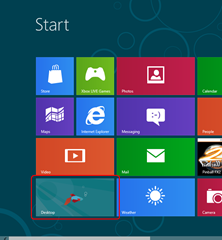
The first impression I got from this whole metro experience?
"The fuck is this shit?"
Microsoft seems to have a bit of difficulty understanding that you can't shoehorn a desktop OS into a tablet. But that's ok, they've shoehorned a tablet OS into a desktop.
The touch-screen oriented user interface is now perfect for my keyboard and mouse. Making me scroll from left to right with the mouse to search for apps organised in a seemingly random order is extremely easy, that's why majority of the websites scroll horizontally!
For those who didn't spot it, that previous paragraph was intended to be extremely sarcastic.
image
After the initial metro culture shock, I looked around for an out. I wanted the desktop. Glad to see they didn't destroy that yet.
 Windows 8-2012-03-11-11-26-55
So the desktop looks just like Windows 7, without the start menu. Sure, that's fine. I think I can do without that...
But my heart sunk even lower after clicking on Windows Explorer.
Windows 8-2012-03-11-11-28-44
Lo and behold, ribbons. Yep, transformation complete. Those "love it or hate it" ribbons from Office 2007 have been ported into the Windows 8 Windows Explorer. This sealed the deal, I am not upgrading to this cursed odd cycle OS.

Hybrid user interface

So far, I don't think this OS should be shipped. Why? Plainly because it's a filthy mongrel.
The user interface (outside of metro) is not geared for touch-interface users. The icons and buttons are too small for fingers so it's too easy to click the wrong screen elements.
However, for keyboard and mouse users, the whole touch-centric interface is nothing short of frustrating. You can't swipe or pinch, so you're forced to work with the mouse in an unnatural way.
I'm no fan of Apple products but at least they got something clear from the get-go. Keep the touch and desktop operating systems as separate software entities!

Shutting down...

I'll play around a bit more with Win8 later. But because I installed this at 5am in the morning, I needed to find the shutdown button. Wait, what shutdown button!?
Windows 8-2012-03-11-11-27-23
Clicking on the magnifying glass on the bottom right corner gave me an overview of all the app icons. Too small to be legible, too empty to be useful.
I clicked randomly to zoom back in. I took a second look through all the apps to find something that may lead to a shutdown. Nothing.
After moving my mouse cursor back to the magnifying glass I realised it was a futile attempt to click it again in hope something different would happen, so I stopped to think.
And that's when it happened. Rather than displaying a tooltip of what the magnifying glass is supposed to do, a menu appeared!
Windows 8-2012-03-11-11-27-51 
Oh, so NOW you want to show me the time?
Thanks Mr Wolf!
But what's this? Settings? Sure it's 5am, I don't mind browsing through some settings quickly.
Windows 8-2012-03-11-11-28-02 image
Sup dawg I heard you like settings.
So after clicking on Settings I had to click into "Settings" again. Somebody at Microsoft had just discovered memes and this was their sick interpretation of an Easter egg... There were only two options, just enough for the pluralisation of "Settings" to be valid.
image
So I tried again and found the "More PC Settings" label below.
Sadly, I completely missed the part which says "Power" above it. Partly because I was looking for "settings" (I mean, why else would I be there right?) and also due to the fact that ALL THE ICONS ARE WHITE.
After years of using Windows you've come to learn that power or shutdown buttons are red, easy to spot out in a big sea of icons. Hipster Microsoft said, "Fuck that! With our Metro styling everything will look the same."
image
After messing with all the options, something dawned upon me...
Windows 8-2012-03-11-12-22-23
There's no way out. No "Back", "Apply" or "OK" buttons of sorts. FUCK Ballmer, what is this half baked shit? What happened to eating your own dog food?
After minutes of frustration (in computing time it feels like hours) trying all possible menus and the escape button, my last resort was to press the Windows button.
Sweet mother of God, it worked. I was thrown back to the shitty Metro home screen.
I clicked on the "Settings" button again, but thought "Do I really wanna go there again?". And that's when I noticed the subtle "Power" icon.
Windows 8-2012-03-11-11-28-06
Screw this, I'm outta here.
Microsoft, you've really dropped the ball here. Your competitors are gaining ground, what you gonna do?
  • You're losing desktop systems to Mac OSX
  • Windows 7 phones is barely picking up traction
  • You're losing browser turf to Chrome and Firefox
  • And Nintendo is still decimating the gaming market
Think clearly before dropping Windows 8 onto shelves.

Windows 8 Developers Preview: Disable the Metro Interface

Sure it's designed for tablets and all, but I have a feeling Win8 might fall to the curse of the sucky "odd" release (Windows 3.1, Win98, XP and 7 were great! Win95, ME and Vista were terribad)

With this whole shift to ribbons and metro, I think I'll stick to Windows 7 (unless there was a way to disable all those bells and whistles).

You can grab a copy of it off Microsoft's official site.

Anyway, enough rambling. To disable the metro task "home" screen, either press "Win+R" to open up the Run dialog or open a command prompt.

Paste in:

reg add HKCU\Software\Microsoft\Windows\CurrentVersion\Explorer /f /v RPEnabled /t REG_DWORD /d 0

Whalla!

Restart Windows 8 and you'll have rid yourself of that horrible tablet UI.

Source: Disable Metro UI And Get Windows 7 Styled Start Menu Back in Windows 8

 
Copyright © Twig's Tech Tips
Theme by BloggerThemes & TopWPThemes Sponsored by iBlogtoBlog